By GameView · for hotels and resorts

Every room TV, run from the front desk.

Check a guest in and their TV greets them by name, in their language. Check them out and it resets for the next guest. Message any room, switch TVs on or off, and see every room at a glance, from any browser. Guests get your channel guide, your ads and your brand on every screen.
  • ✓ VenueView Front Desk: rooms, guests and TVs in one place
  • ✓ A welcome screen in six languages, with weather and tonight's games
  • ✓ Your channel guide, logo, colours and ads on every TV
  • ✓ Child lock, and a clean TV for every new guest
  • ✓ An API for your PMS and guest apps, with alerts at the desk
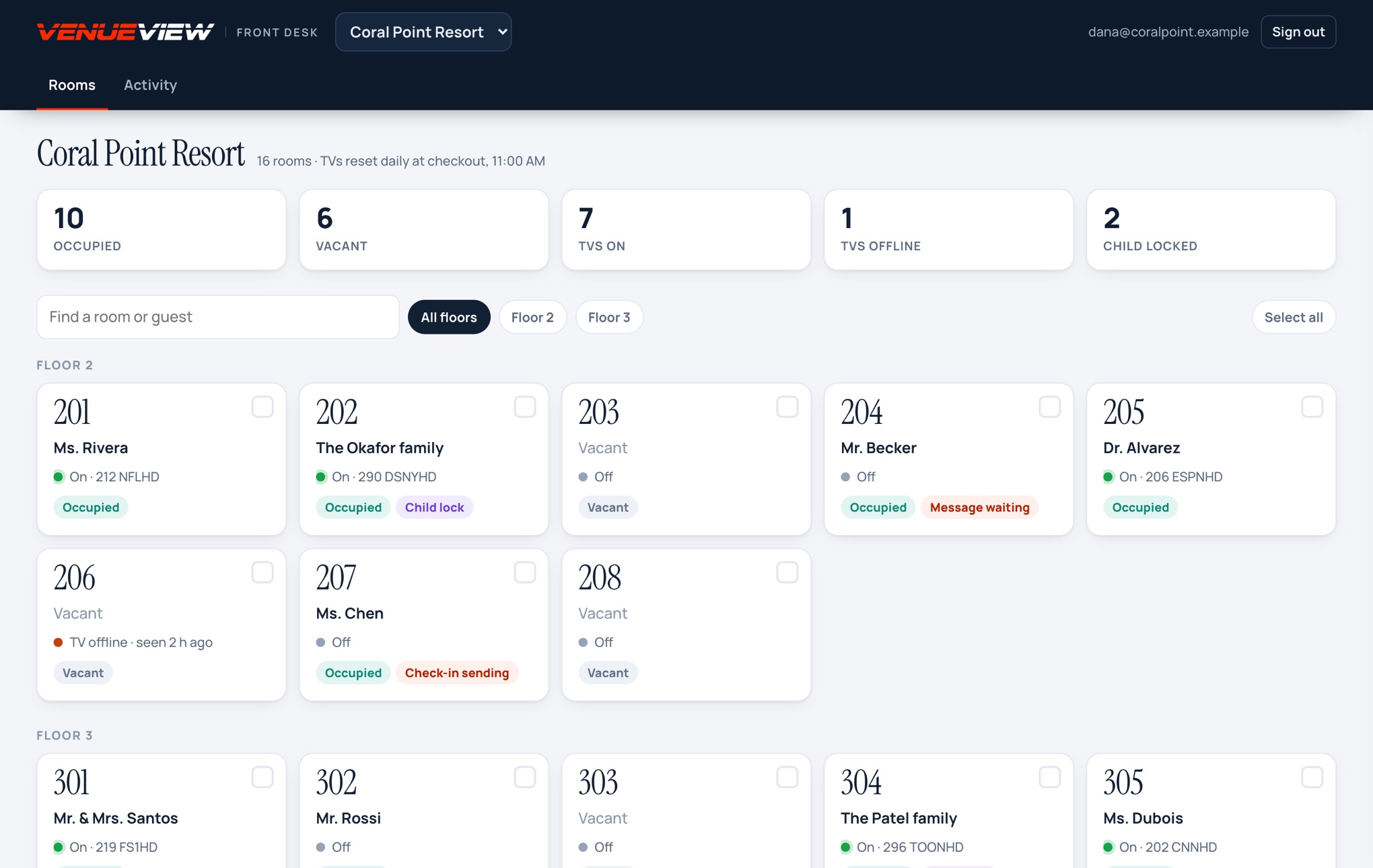
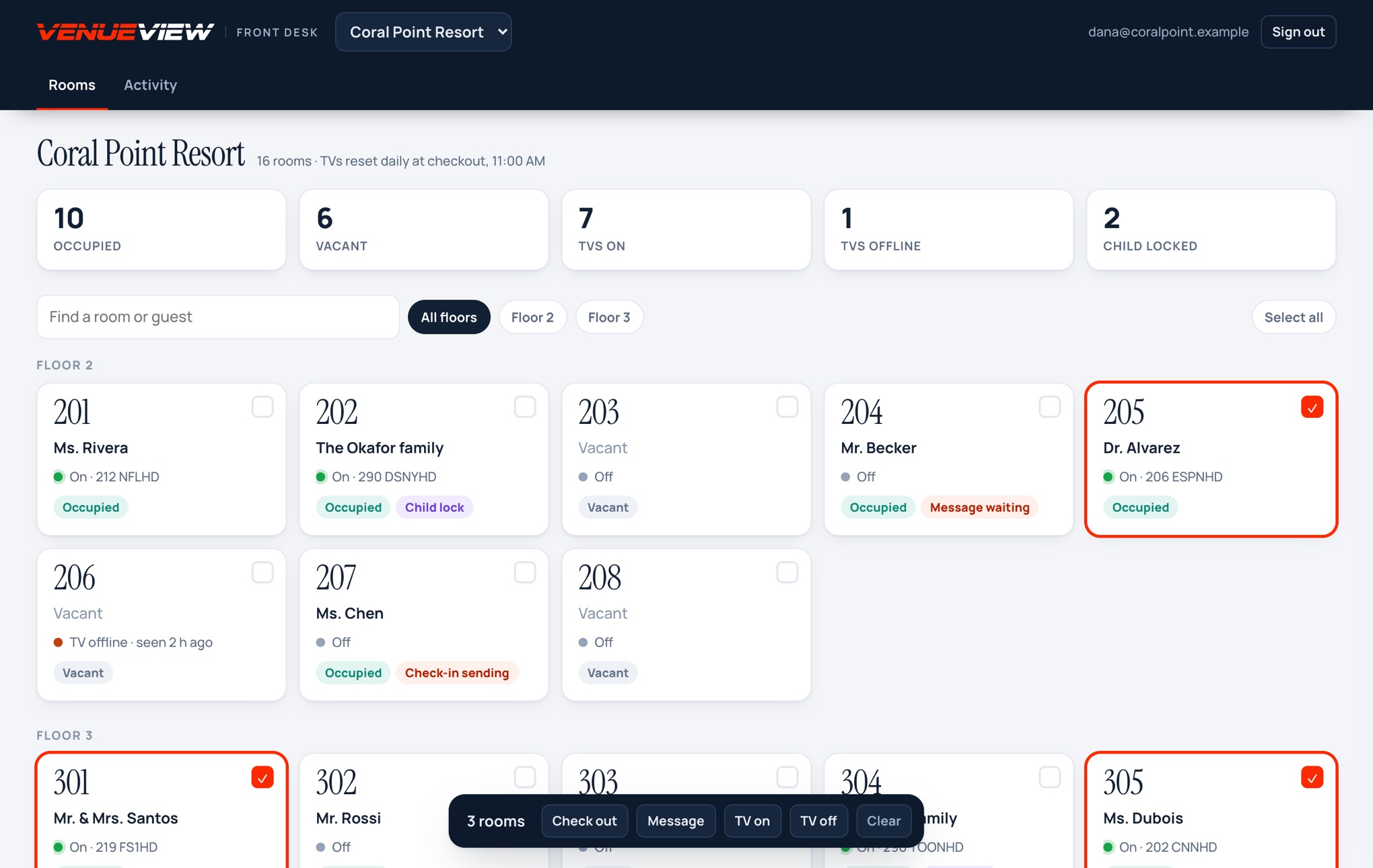
VenueView Front Desk: Coral Point Resort with 16 rooms by floor, 10 occupied, 7 TVs on, 2 child locked, each room showing its guest and what its TV is playing.
Room 201 · Français
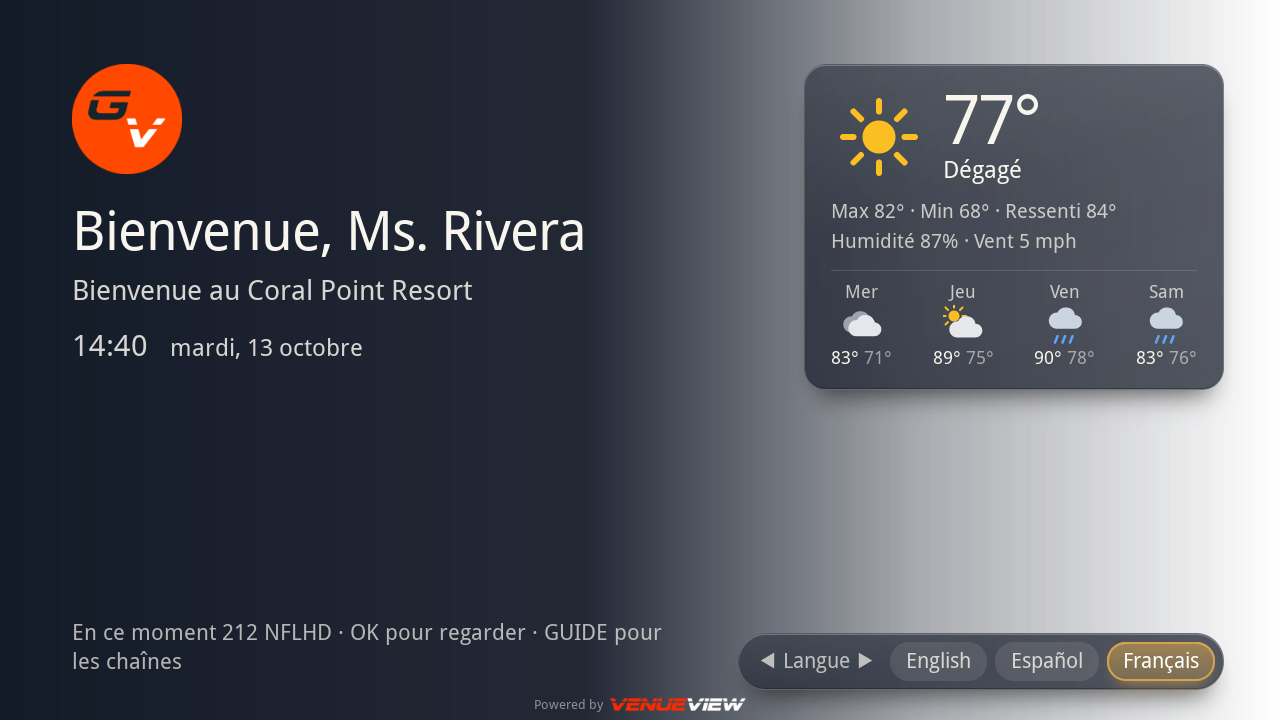
The room TV greets the guest: 'Bienvenue, Ms. Rivera', the resort's welcome, time and date in French, the weather with a four-day outlook, and English, Español and Français to choose from.
VenueView Front Desk and a room TV, with a sample hotel. The TV screen is captured from an LG Pro:Centric box.

At the front desk

VenueView Front Desk

Check in, check out, message rooms and switch TVs, at venueview.gameviewmanager.com.

On every TV

Welcome, guide and ads

The guest's name and language, your channels and your brand, on the remote they already have.

For your installer

Set up once in the portal

Channels, look, ads, welcome and rooms, from the GameView portal. No visit to each TV.

venueview.gameviewmanager.com

Your front desk, connected to every TV in the house.

VenueView Front Desk is a website for your front desk team. Every room is on one screen: who's checked in, whether the TV is on and what it's playing. A check-in, a message or a reset reaches the room's TV within a minute. Staff sign in with their GameView login on any computer or tablet. There's nothing to install.
venueview.gameviewmanager.com
VenueView Front Desk: rooms by floor with occupied, vacant, TVs on, TVs offline and child-locked counts; three rooms selected with Check out, Message, TV on and TV off for all three.
VenueView Front Desk with a sample hotel. Three rooms selected: check them out, message them or switch their TVs together.

Every room at a glance

Occupied or vacant, the guest's name, whether the TV is on and on which channel, TVs that have gone offline, child locks and anything still on its way. Filter by floor, or search a room or a guest.

Check in

Type the guest's name and pick their language. Their TV greets them by name, in that language, the next time it comes on.

Check out

The TV forgets the guest: viewing history, app sign-ins such as YouTube, and language. Child locks clear. The next guest starts fresh. It also happens by itself every day at checkout time.

Message a room

Your table is ready, the spa is running late, late checkout is approved. Send it to one room or a whole floor. It stays on screen until the guest presses OK, and waits if the TV is off.

TVs on and off

Switch one room, a selection or a floor. Turn on the TV for an arriving VIP, or turn everything off in rooms being cleaned.

Clear a child lock

A parent forgot the code? Clear it from the room in one click. Locks also clear by themselves at checkout.

A record of every change

Every check-in, check-out, message and TV change, with the time and the name of the person, or the connected system, that made it.

Built for the front desk

Large, clear buttons, light or dark to suit the lobby, and it refreshes itself. Each login sees only its own property. Groups switch properties from a menu.

Rooms set up by your integrator

Your installer adds each room, its TV and its COM3000 tuner, or imports the whole list at once. Staff run the rooms; the wiring stays with the integrator.

How fast? A TV that's on picks up a check-in, a message or a reset within a minute. A TV that's off picks it up within five, and a message waits on screen until the guest sees it.

A stay, start to finish

From check-in to the next guest, without anyone touching the TV.

Ms. Rivera arrives at Coral Point Resort. This is her stay, as the front desk and her TV see it.
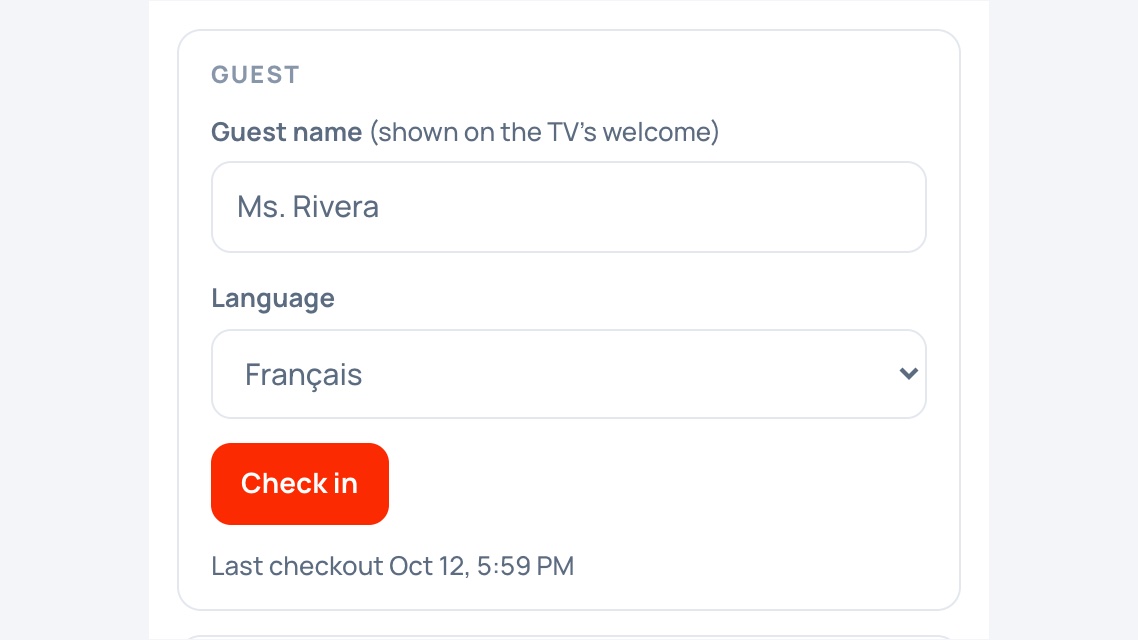
VenueView Front Desk, room 201: guest name Ms. Rivera, language Français, and the Check in button.
2:24 PM · Front desk

Checked in

The desk enters her name and picks French.

'Bienvenue, Ms. Rivera' on the room TV, with the weather in French.
2:40 PM · Room TV

Welcomed by name

The TV comes on to Bienvenue, Ms. Rivera, with the time, date and weather in French.
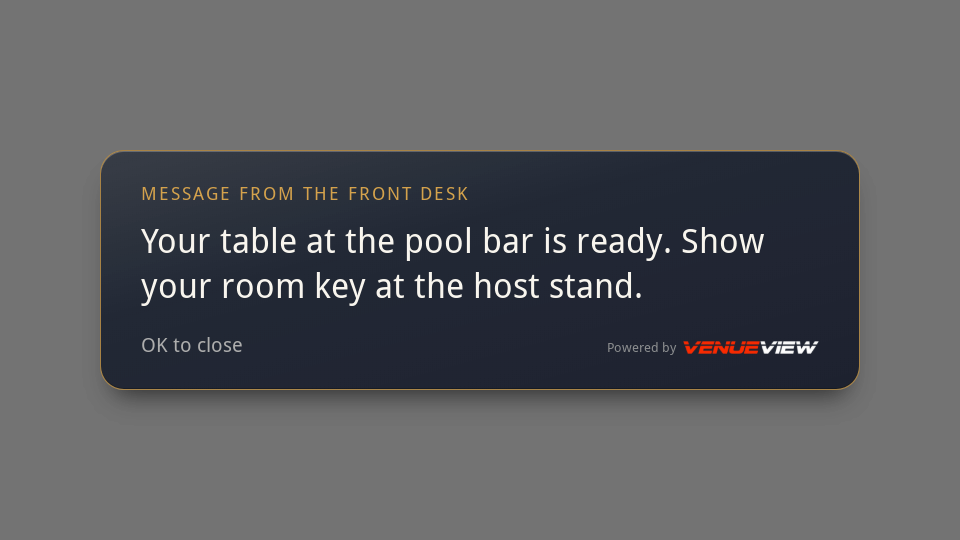
A message from the front desk on the room TV: 'Your table at the pool bar is ready. Show your room key at the host stand.' with OK to close.
6:10 PM · Front desk

A message to the room

"Your table at the pool bar is ready." It stays on screen until she presses OK.

Ready for the next guestViewing history clearedApp sign-ins clearedLanguage back to the venue'sChild lock and messages gone
11:00 AM · Checkout

A clean TV

Checked out at the desk, or automatically at checkout time. The next guest never sees hers.
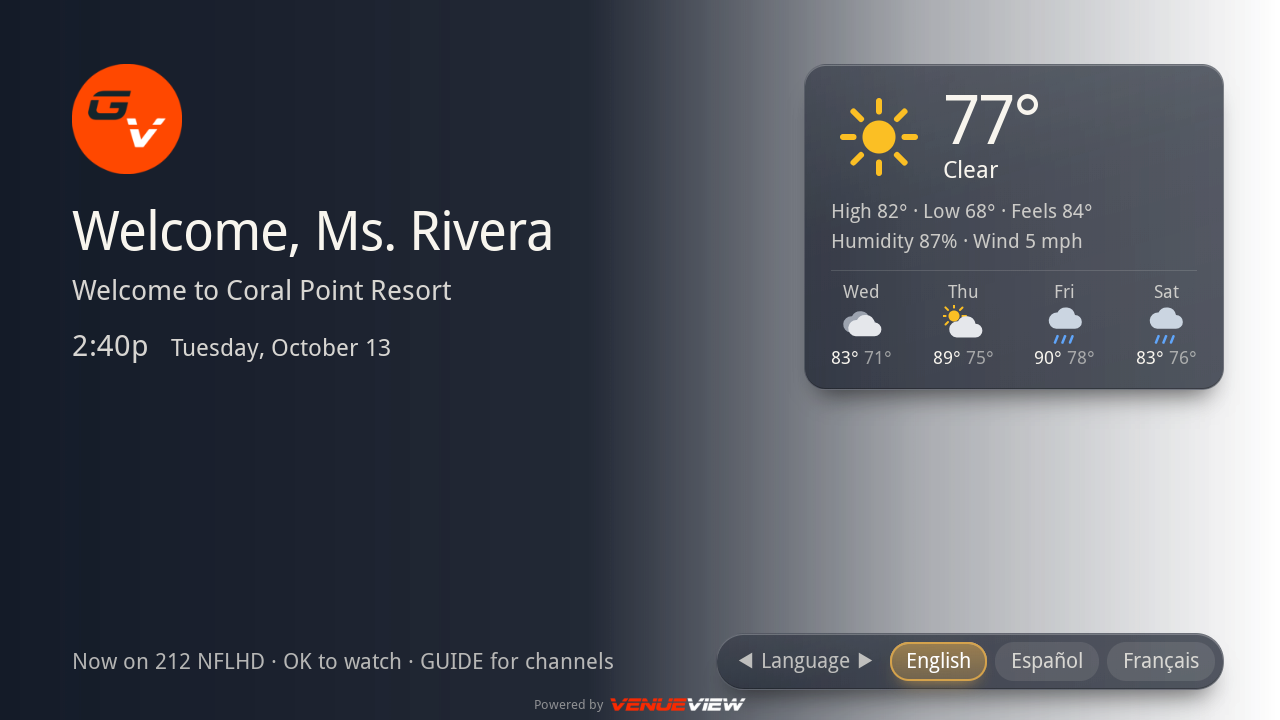
The VenueView welcome screen: the resort logo, 'Welcome, Ms. Rivera', 'Welcome to Coral Point Resort', the time and date, a weather card with today and four days, and a language bar with English, Español and Français.
Captured from an LG Pro:Centric box. The picture behind it is a stand-in for live TV.
For the guest

A welcome in their language.

  • When the TV comes on, it greets the guest by name over the picture, with your logo and message. Any key moves on. It leaves by itself after 30 seconds.
  • Six languages. The guest switches with ◀ ▶, or the front desk sets it at check-in. Dates, times, weather and hints follow the language.
  • Translated for you. Write your welcome once. The portal's Translate button fills in each language, and you can edit any of them.
  • Weather and tonight's games: now, the next 8 hours and 4 days for your address, and the biggest games on your channels.
EnglishEspañolFrançaisPortuguêsDeutschItaliano
For the installer

Set up once in the portal, for the whole venue.

Open the location in the GameView portal and choose VenueView → Edit. One window, five tabs: Channels, Look, Ads, Welcome & guest and Viewing. Rooms are added in VenueView Front Desk → Room setup. Nothing is configured on the TVs themselves.

Channels tab

Build the list from the COM catalog.

  • Search by number, call sign or name across every channel the COM3000 can tune, or paste a list such as 206, 212, 219.
  • Set the order. It's the order CH+ and CH− step through on every TV.
  • Bad numbers are caught. A channel the COM can't tune is flagged, skipped by the TVs and left off the printed card.
gameviewmanager.com · Location → COM channels

VenueView · Coral Point Resort

Channels (5)LookAds (1)Welcome & guestViewing
On this venue's list — the order CH+ steps through
206ESPNHD · ESPN HD↑↓
209ESPN 2 HD↑↓
212NFLHD · NFL HD↑↓
219FS1HD↑↓
9999Not in the COM catalog — the TVs will skip it↑↓
gameviewmanager.com · COM channels → VenueView · Look
Channels (5)LookAds (1)Welcome & guestViewing
Logo
Replace logo
Colours from logo
Colours
BackgroundTextAccent
GameViewMidnight goldOceanSand
Ads on the right (1/8)
+ Add
Preview — the TV
TVs pick up a change within 30 minutes, or at once when someone presses GUIDE.

Look, Ads and Welcome tabs

Make it look like the venue.

  • Logo: upload a PNG, or reuse the logo already on the venue's Live Scores board.
  • Colours: background, text and accent, six presets, or Colours from logo, which picks an accent and a background that suit the logo.
  • Title and footer note, such as "In-room channels" and "Front desk: dial 0".
  • Welcome & guest: the welcome message and its languages, a featured channel for new guests, Guest info pages (hours, dining, Wi-Fi), weather for your address, tonight's games, and the daily reset at checkout.
  • Ads (their own tab): up to twelve images, each shown for 5 to 60 seconds, each with who may see it (kid-safe, general, adults 21+), dates, days, hours and guides, and its impressions. A tall 2 : 3 image (680 × 1000) fills the column.
  • The preview is the TV. It draws the guide at the TV's own 1280 × 720 layout.
  • Child lock: turn it on, pick the kids guide, set the daily reset time and mark which ads are kid-safe. How it works
  • Audience profile: tell advertisers about your guests (rooms, ages, income, business or leisure, families, interests and languages). It appears in the GameView ad marketplace as provided by the venue, so advertisers looking for your kind of guest can find you.

Print room guide

One page for every room.

  • One click from the editor or the location card makes a US Letter sheet.
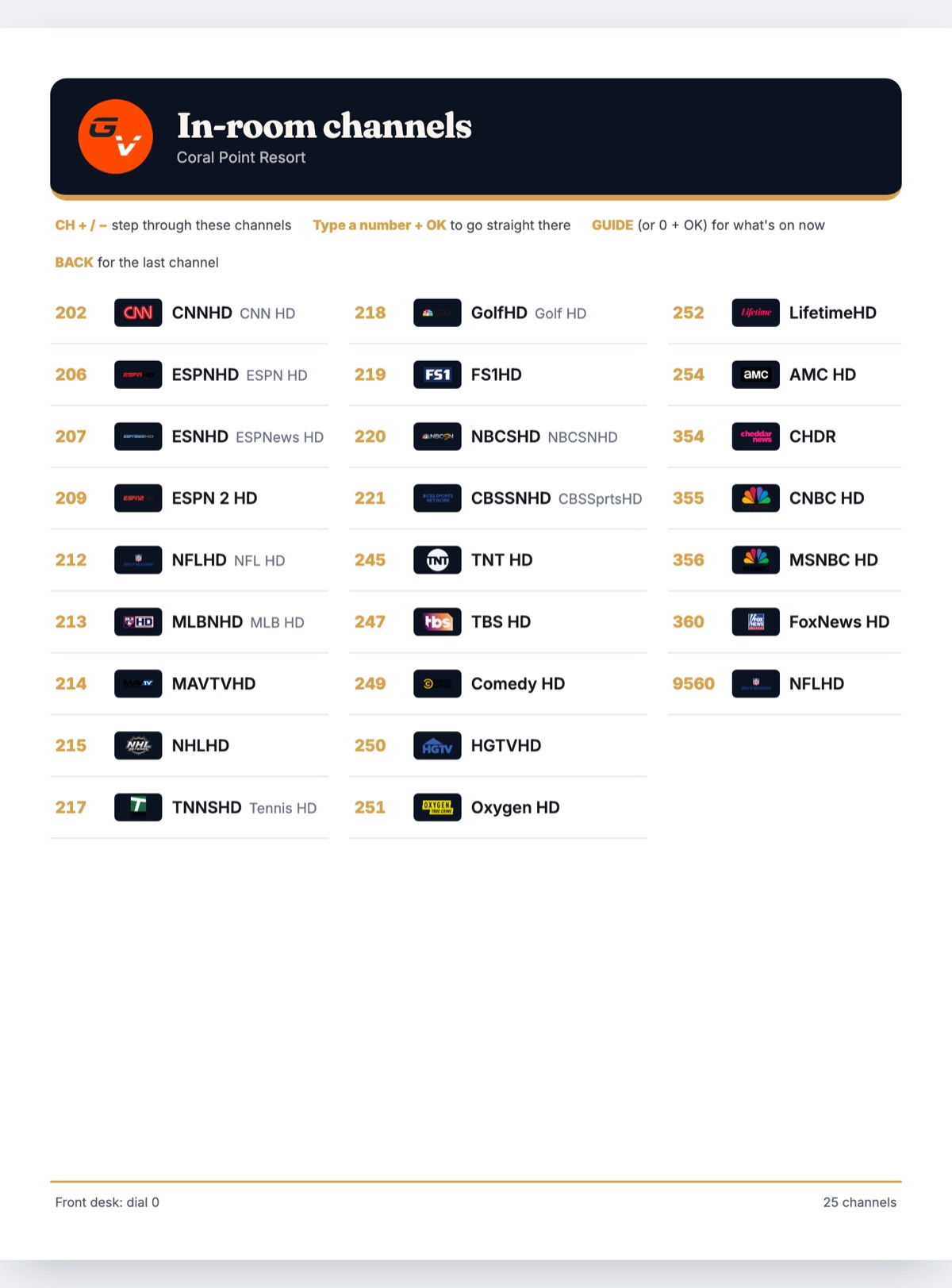
  • The guide's own header, then every channel in number order with its station logo.
  • The four keys guests need and the footer note, printed on the card.
  • Always one page. Columns and type size adjust to the list, from a handful of channels to about a hundred.
The printed room guide: a navy header with the venue logo, 'In-room channels' and the resort name, the four remote keys, then 25 channels in three columns with station logos, and 'Front desk: dial 0' at the foot.
Rendered by the portal from a 25-channel list.
gameviewmanager.com · COM channels → Viewing
ChannelsLookAdsWelcome & guestViewing
✓Track viewing on this venue's LG TVs
Minutes each TV is on, and the channel it's on.
Example data · 7 days388 h watched · 42 TVs
206ESPNHD142 h
212NFLHD101 h
202CNNHD68 h
249Comedy HD47 h
219FS1HD30 h

Viewing tab

See what guests actually watch.

  • One switch per venue. Each TV counts the minutes it's on, and the channel it's on.
  • Measured at the COM. With a GameView Data Master at the venue, the channel is read from the COM itself, so changes made from the iPad count too. Without one, it's the last channel picked on that TV's remote.
  • Reports for 24 hours, 7, 30 or 90 days: hours, share and number of TVs per channel.
TVsLG Pro:Centric TVs or boxes running the GameView app
VideoDirecTV COM3000 with IP outputs. The TV changes the channel on the COM tuner that feeds it.
SetupThe GameView portal, under Location → VenueView. Installers, integrators and the venue can all edit it. Rooms are added by the integrator in VenueView Front Desk.
Front deskVenueView Front Desk at venueview.gameviewmanager.com, in any browser, with a GameView login. Check-ins, check-outs, messages and TV power reach the room within a minute (five if the TV is off).
LanguagesEnglish, Spanish, French, Portuguese, German and Italian on the welcome screen.
UpdatesGuide and look changes reach every TV within 30 minutes, or at once when someone presses GUIDE. No visit, no reflash.
ImagesLogo: PNG with a transparent background. Ads: PNG, JPG or WebP up to 3 MB, ideally 2 : 3.
Child lockA 4-digit code set on the TV remote. Locked TVs reach only the venue's Kids guide; every lock clears daily at the venue's time (11:00 AM by default).
Checkout resetEach TV forgets its guest at checkout (viewing history, app sign-ins, language, child lock, messages), from the front desk or daily at the venue's checkout time.
Viewing timeMost accurate with a GameView Data Master reading the COM.

Plan the outputs. CH+ changes the COM tuner, not the TV, so TVs that share one COM output change together. For guest rooms, give each room its own tuner.

For the guest

Just the remote they already have.

Nothing to learn and nothing to download. The buttons on the TV remote do what guests expect, and the guide always looks like your venue. Press a key to see what it does.

PRESS A KEY
CH + / CH −

Steps through your channels in the order you set. The new channel's logo, number and call letters appear in the corner, with what's on now.

A number

Shows the digits big on screen with the channel's name, so guests know it's the right one before they commit.

OK

Goes straight to that channel. Only channels on your list are allowed.

GUIDE

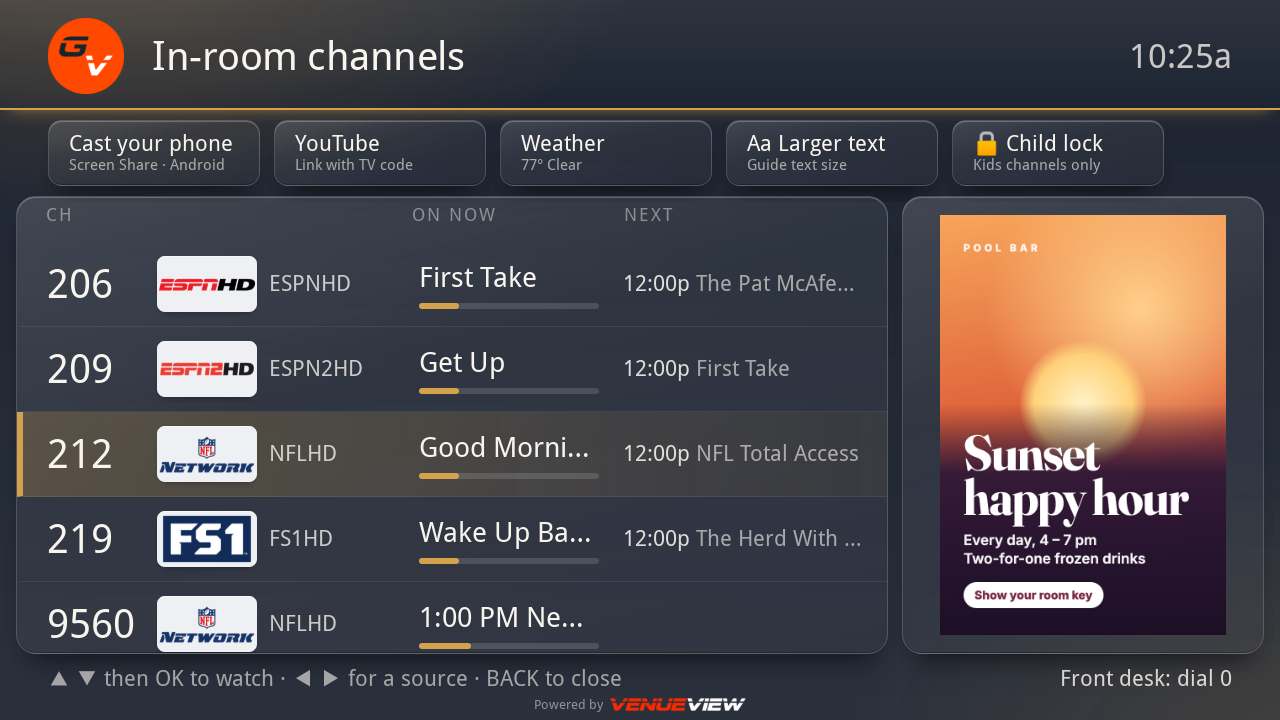
Opens the guide: every channel with what's on now, a progress bar and what's next. It scrolls itself and closes after five idle minutes.

0 or 1, then OK

Also opens the guide, for guests who reach for "channel 1".

◀ ▶

In the guide, the guest's own sources: cast a phone with Screen Share, YouTube, an HDMI input when something is plugged in, Guest info, Weather, Tonight's games and Larger text.

BACK

Clears a half-typed number, closes the guide, or jumps back to the last channel watched.

212_NFLHD · ENTER to watch
Typing a number. The digits and the channel's name, top right.
NFL Network logo212 · NFLHD · Good Morning Football
After a change. The station's logo, number, call letters and what's on now, top left.
GUIDE. What's on now and next, under your brand, with the guest's own sources along the top.
The printed room guide.

And a card on the nightstand.

The printed guide matches the TV: the same logo and colours, every channel by number with its station logo, and the four keys guests need. When the list changes, print it again.

For families

Child lock: kids channels only, until checkout.

A parent locks the room TV from the remote with a 4-digit code. Until it's unlocked, the TV stays on the channels you chose for kids, and the lock clears itself every day at checkout. Made for family hotel rooms, resort suites and cabanas, and kids clubs.

Illustration of a locked guide. Channels and ad are samples.

Child lock

Parents set it. The venue stays in charge.

  • Set from the TV remote. In the guide, a parent chooses Child lock and enters a 4-digit code twice. The same code unlocks it.
  • Only the Kids channels. The guide, CH + / CH − and typed channel numbers reach only the venue's Kids guide. HDMI inputs, phone casting and YouTube are hidden while it's locked.
  • Clears itself at checkout. Every lock is cleared once a day at the time the venue sets, 11:00 AM by default, so the next guest starts unlocked.
  • Front desk can clear it. Code forgotten? Staff clear the lock from the GameView portal or the venue iPad.
  • Kid-safe ads. While a TV is locked, the ad column shows only the ads the venue marked kid-safe, or none, so adult-oriented ads stay off kids' screens.

Every lock is on record. Each lock, unlock, clear, expiry and wrong-code attempt is reported to the GameView portal, per room TV, with the time.

For your systems

The VenueView API: your property system runs the room TVs too.

Your PMS, concierge app or guest app can do what the front desk does: check guests in and out, set their stay and preferences, message rooms, switch TVs and clear child locks. Every call shows on the Front Desk next to the staff's own changes, so the desk always knows who did what.

What a key can do

readevery key

See the property

Rooms and floors, who's checked in, messages, the channel guide, and an activity feed your system can follow.

GET /venueview/properties/{id}/rooms · /channels · /events
guests

Check in and check out

Guest name, language, reservation and departure. Preferences for the stay: large text, and the channel the welcome screen offers first. Checkout resets the TV for the next guest.

POST …/rooms/number/1204/checkin · /checkout · PATCH /guest
messages

Message rooms

One room, every occupied room, or a floor. Cancel a message the guest hasn't read yet.

POST …/rooms/{room}/messages · POST …/messages
tv

Room TVs

Turn a TV on or off, refresh it, or clear a child lock.

POST …/power · /refresh · DELETE …/lock
setupintegrator only

Room setup

Add, change and remove rooms, their TVs and tuners.

POST · PATCH · DELETE …/rooms
Check in from your PMS
# Rooms are addressed by their room number
curl -X POST \
  https://gameviewmanager.com/account_manager/api/venueview/properties/1903/rooms/number/1204/checkin \
  -H "X-API-Key: gvk_…" \
  -H "Content-Type: application/json" \
  -d '{
    "guest_name": "Ms Rivera",
    "lang": "es",
    "departure": "2026-10-16T11:00:00-04:00",
    "prefs": { "large_text": true }
  }'

Room 1204's TV greets Ms Rivera in Spanish, in large text, the next time it comes on. The Front Desk shows her as checked in, due out on the 16th, by "API · PMS".

Example request. Property 1903 and the guest are samples.

A key for each system

Your integrator creates keys on the Front Desk or in the GameView portal. Each key is named, limited to your property, and given only what it needs: a PMS gets check-in and check-out, a concierge app gets messages.

  • The key is shown once; GameView keeps only a fingerprint
  • Revoke a key in one click; it stops at once
  • HTTPS and JSON, up to 120 calls a minute per key

Every call on record

The Front Desk's API tab shows calls by key and by action, failures with the reason, the rooms each system touched, and every call with its time, address and result. Export it to CSV. Ninety days are kept.

Alerts at the desk

When an integration does something unusual, a banner appears on every Front Desk screen until someone acknowledges it.

  • Many checkouts or TVs turned off at once
  • Calls with an invalid or revoked key
  • A system failing, too fast, or unusually busy
  • A busy system that has gone quiet
  • A key used from a new address
VenueView

Run every room TV from the front desk.

VenueView runs on the LG TVs and COM3000 you already have. Your installer turns it on and sets up the rooms, and your front desk takes it from there.